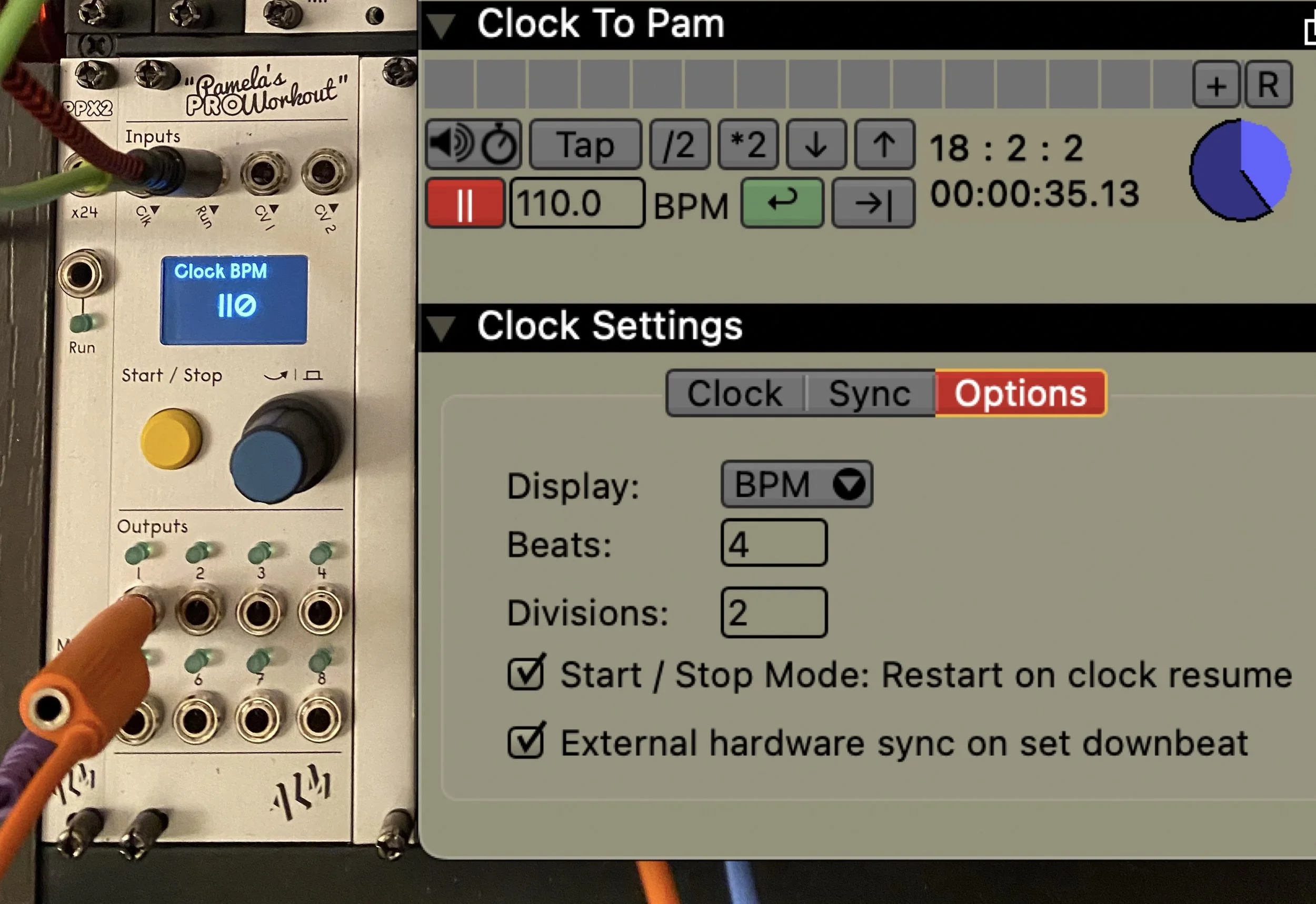
When working with Eurorack systems alongside VDMX, a particularly useful technique is to synchronize the clock timing between the systems using MIDI. In this tutorial we will be looking at setting this up in both directions: Having VDMX follow a Eurorack clock, and vice versa. In the second part of this tutorial we will introduce using the VDMX automatic BPM detection to drive the Eurorack clock.
A good example of a situation where you may want to synchronize timing with a Eurorack clock is when using the VDMX Step Sequencer and LFO plugins to send MIDI output as control data.
Introduction
The major differences between standard MIDI clock and clock synchronization in Eurorack are:
PPQN (Pulse Per Quarter Note)
MIDI Clock always uses 24 PPQN
While most Eurorack modules use the same 24 PPQN standard as MIDI Clock, some modules prefer less frequency pulses. Make sure to check the needed PPQN for your gear if the timing seems off.
MIDI Start / Stop / Continue messages vs Run / Reset inputs
MIDI devices will send Start, Stop, and Continue messages. When a Start message is received, the clock should reset its position and resume moving forward. When a Continue message is received, the clock should resume moving forward from its current time position.
MIDI also supports a ‘Song Position’ message type that can be used to re-synchronize the time position of clocks.
Eurorack clock modules typically have a Run or Reset input for setting if the clock is running and resetting it to the starting time position.
For this walkthrough we will be using the ALM Pamela’s Pro Workout clock module, with the PPEXP2 expander for sending MIDI Clock output along with a MIDI to USB interface device. To get MIDI output from VDMX to the Pamela’s Pro Workout we have the Noise Engineering Univer Inter.
Noise Engineering also has a great introduction to Eurorack clocks and PPQN on their blog.
Part 1A: Sending MIDI Clock from Pamela’s Pro Workout to VDMX
For this direction the VDMX clock will be set to follow the sync signal from the Pamela’s Pro Workout, using the PPEXP2 expander.
The basic steps here are as follows:
Connect the MIDI Out on the PPEXP2 expander to the MIDI port and configure in the VDMX Clock inspector.
Set up the hardware:
Connect a 3.5mm TRS to DIN5 MIDI adapter to the MIDI clock out on the PPEXP2 expander.
Connect the MIDI adapter to the MIDI to USB interface.
Connect the MIDI to USB interface to the computer.
Set up the software:
Inspect the Clock plugin in VDMX
In the Clock tab, select the “MIDI Clock” option for the Mode menu.
Select the MIDI to USB interface from the list of available MIDI clock sources.
Test setup:
Adjust Pamela’s Pro Workout BPM and confirm the VDMX clock adjusts to match.
Stop and restart the Pamela’s Pro Workout and confirm the running state of the VDMX clock.
Troubleshooting:
Use Audio MIDI Setup to verify the hardware is connected.
Use MIDI Monitor or another 3rd party app to confirm the MIDI to USB interface is receiving a clock signal and clock start / stop messages.
Part 1B: Sending MIDI Clock from VDMX to the Pamela’s Pro Workout
For this direction the Pamela’s Pro Workout clock will be set to follow the sync signal from a VDMX clock, using the Univer Inter to convert the MIDI clock to Eurorack CV.
Use the Clock and Run inputs on the Pamela’s Pro Workout
Set up the hardware:
Connect the Univer Inter, or other MIDI to CV interface, to the computer by USB (or MIDI)
Connect the Univer Inter CV output 7 to the Clock In input on the Pamela’s Pro Workout
Connect the Univer Inter CV output 8 to the Run input on the Pamela’s Pro Workout
Configure the hardware:
Use the setup panel for the Univer Inter to set output 7 to Sync / MIDI Clock output at 24 PPQN.
Use the setup panel for the Univer Inter to set output 8 to Sync / Run messages
Make sure that the Pamela’s Pro Workout is set to 24 PPQN (the default setting)
Configure the outputs of your MIDI to CV device to send Sync / Clock and Sync / Run messages.
Configure the Clock Options for external hardware sync.
Set up the software:
Inspect the Clock plugin in VDMX
In the Clock / Sync tab enable MIDI Clock output for the MIDI to CV module
In the Clock / Options tab, enable the “Start / Stop Mode” setting – this will switch the Pause / Continue behavior for the Clock plugin to “Stop / Start” like the Pamela’s Pro Workout button.
In the Clock / Options tab, enable the “External hardware sync on set downbeat” setting – this will send extra stop / start messages when the downbeat is reset in VDMX.
Test setup:
Adjust VDMX BPM and confirm the Pamela’s Pro Workout adjusts to match.
Stop and restart the VDMX clock and confirm the Pamela’s Pro Workout stops and restarts with the Run input.
Troubleshooting:
Use Audio MIDI Setup to verify the hardware is connected.
Use MIDI Monitor or another 3rd party app to confirm the MIDI to USB interface is receiving a clock signal and clock start / stop messages.
Part 2: Sending VDMX Tempo Tracking to the Pamela’s Pro Workout
Configure the VDMX Clock to “BPM Detect” mode in the inspector.
Once the basic setup for sending MIDI clock and Run messages from VDMX to a Eurorack clock is completed as described above, the automatic BPM Detection can be used to synchronize both clocks with the tempo of a real-time musical audio feed.
The basic steps here are as follows:
Set up the software:
Inspect the Clock plugin in VDMX.
In the Clock tab, choose the “BPM Detect” option from the Mode menu.
Use the audio source menu to select an audio feed.
Optionally set an audio level threshold for the “pause on silence” mode and adjust gain level.
Use Audio Analysis plugins to create control data values, visualize frequency responses, and pass-through audio streams to sound output devices.
Using the VDMX Audio Analysis to visualize a “clap” sound triggered by the Pamela’s Pro Workout on the downbeat.
VDMX can receive audio from any standard audio interface, or capture audio directly from other applications. In this video tutorial we demonstrate capturing audio directly from Safari, streaming a song titled “Cruise control” by Patrick Patrikios from the YouTube royalty free music library.
Looking for more VDMX / Eurorack inspiration? Check out these related tutorials:
VDMX and Ableton Live: A Beginner's Guide to Animate your Music
VDMX Step Sequencer and LFO plugins to send MIDI output as control data